Your task list, right there on your car's display
See what's due, get directions, and call contacts — without ever picking up your phone.
BetterKeeper now works with CarPlay. Your Today view — Scheduled, Due Today, Overdue, and Ongoing — appears right on your car's screen. Tap a task to get directions to where you're headed, call the person you're meeting, or mark it done. All hands-free, all while you drive.

Checking your to-do list while driving shouldn't mean looking at your phone
You're about to head to a meeting and you can't remember the address. Or you suddenly recall you were supposed to call a client on the way. The natural move is to glance at your phone — exactly the moment you shouldn't.
Most task managers live entirely on the phone screen. The second you're behind the wheel, your carefully organized day becomes inaccessible — or worse, a distraction you reach for anyway.
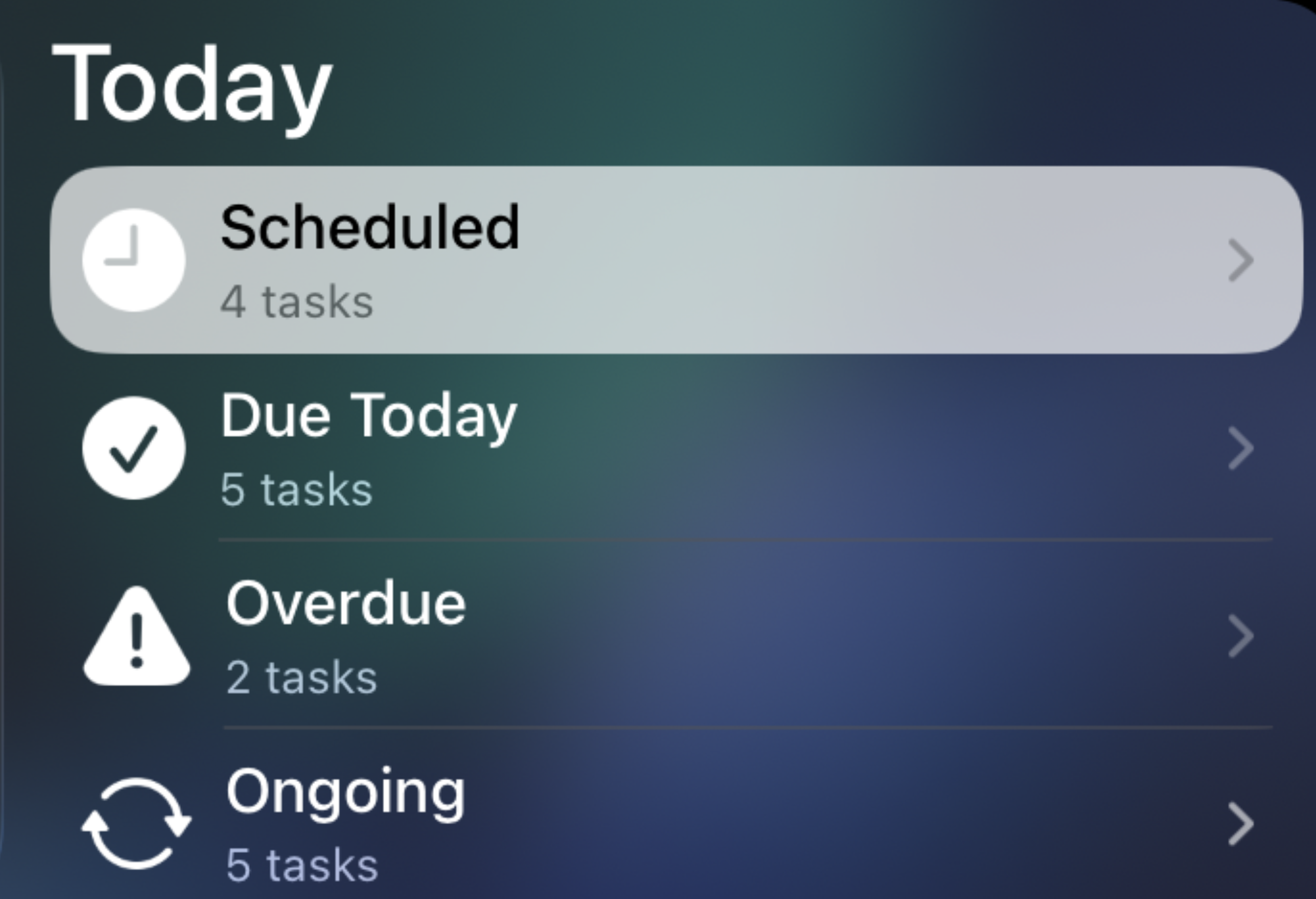
Your Today view, built for the car — not a shrunken phone screen
BetterKeeper's CarPlay integration puts your Today categories — Scheduled, Due Today, Overdue, and Ongoing — front and center, each with a live count. Tap a category to open its task list, then tap any task to act on it immediately.
From there, BetterKeeper offers exactly what you need on the road: Directions to a task's location in your preferred maps app, a one-tap Call to the contact attached to it, or Mark Complete to check it off — all without unlocking your phone or breaking your focus on the road.
Everything you need at a glance — nothing you don't
-
Today categories with live counts Scheduled, Due Today, Overdue, and Ongoing — the same sections you know from your phone's Today view, shown clearly on your car's display with a tap-to-open task list for each.
-
One-tap Directions Tap a task tied to a destination and BetterKeeper opens it directly in your preferred navigation app — Apple Maps, Google Maps, or Waze. No searching, no retyping an address while you drive.
-
Call a contact straight from a task If a task has a phone number attached, BetterKeeper can dial it for you — perfect for "call before you arrive" reminders or last-minute check-ins on your way.
-
Mark tasks complete on the go Finished a stop on your route? Check the task off right from the CarPlay screen — it syncs back to your iPhone, iPad, and Mac instantly.
-
Designed to keep your eyes on the road Large touch targets, minimal taps, and a focused layout — built around Apple's CarPlay guidelines so you can act fast and look back at the road.